One device. One location.
Use one ARM64 Android 9+ device on reliable power for the whole location. Keep it on the same trusted private network as all your encoder inputs and players.
 Start here
DisplayHUB Android Controller / One per location
You only need one controller per location. A dedicated Android device becomes your control center for all encoder inputs and TV players. The browser dashboard is hosted inside your venue, on your private network, not on the public internet.
ARM64 Android 9 and later. Download the current signed release and follow the installation prompts.

Use one ARM64 Android 9+ device on reliable power for the whole location. Keep it on the same trusted private network as all your encoder inputs and players.
Open http://displayhub.local:8081/ or the device IP with :8081. The app shows the available LAN addresses.
Start with one encoder input and one TV. Add more inputs and screens later without adding another controller at this location.
Simple to start. Powerful when you need it.
Your one controller per location manages discovery and commands; it does not become an HDMI capture device or automatically relay all video. Manage from a phone, tablet, or computer on the same trusted network.
Explore the advanced dashboard guide →Player installation and first-use pairing vary by platform. The player pages explain your options. Android does not provide every desktop deployment or remote-key tool.
After a restart, Android may ask you to unlock the device, open the app, or approve USB access. Check your exact hardware under sustained load before putting it away.
Power, heat, and recovery checklist →Inside the dashboard
The example above shows four simulated encoders. When configured and supported, encoder cards put the EPG and source remote alongside program information, and layer buttons immediately below the preview. Paid overlay access and compatible updated software are required. Full-frame hides overlays; Restore layout brings back the saved selections.
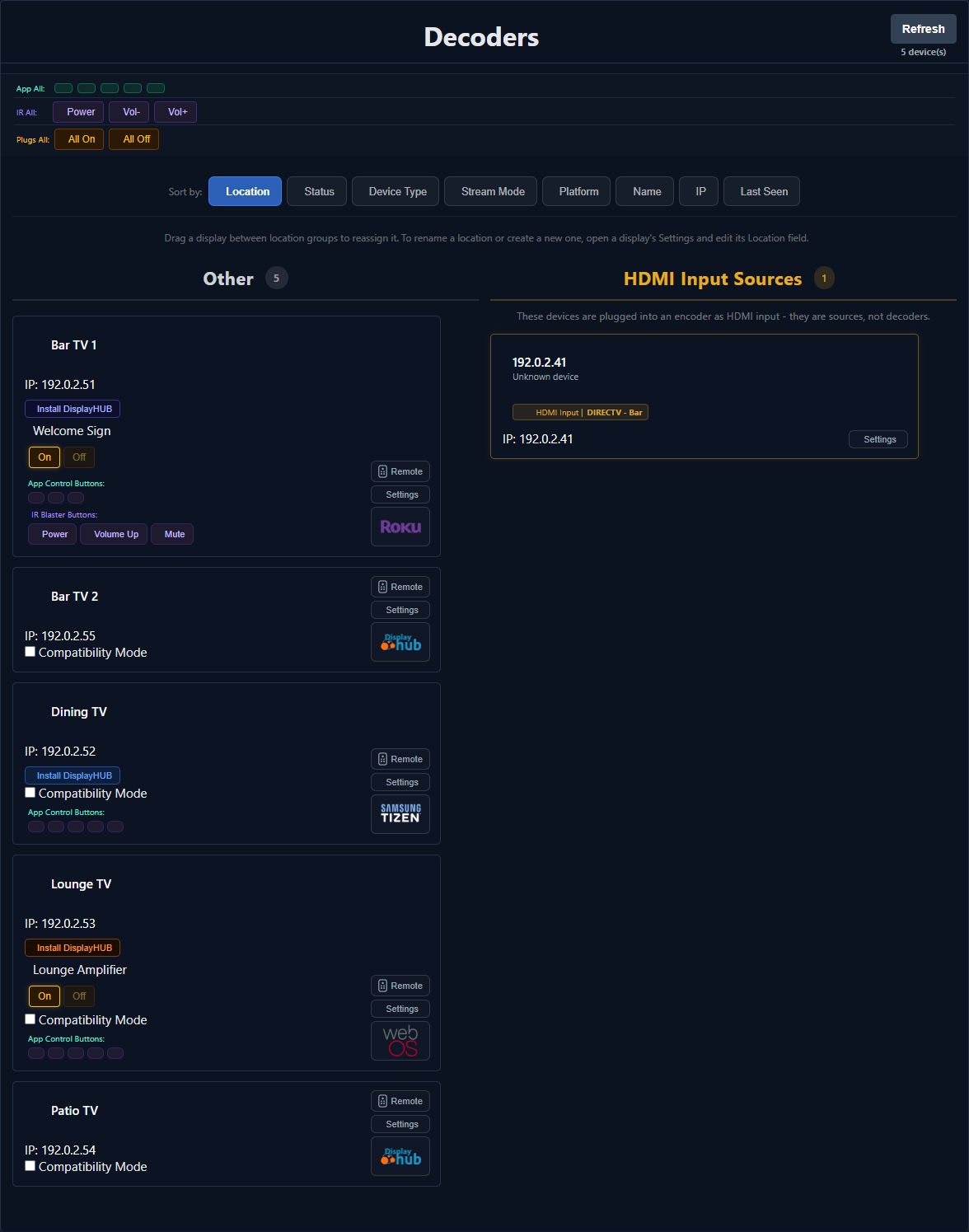
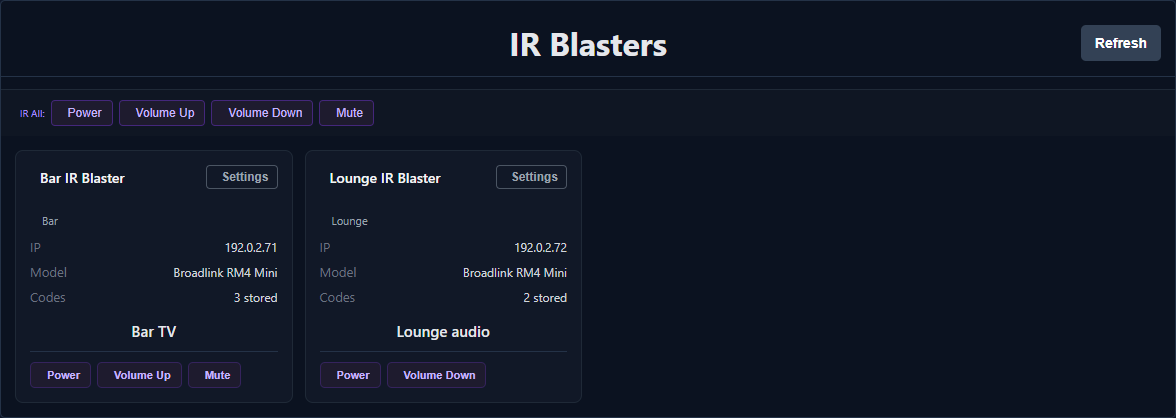
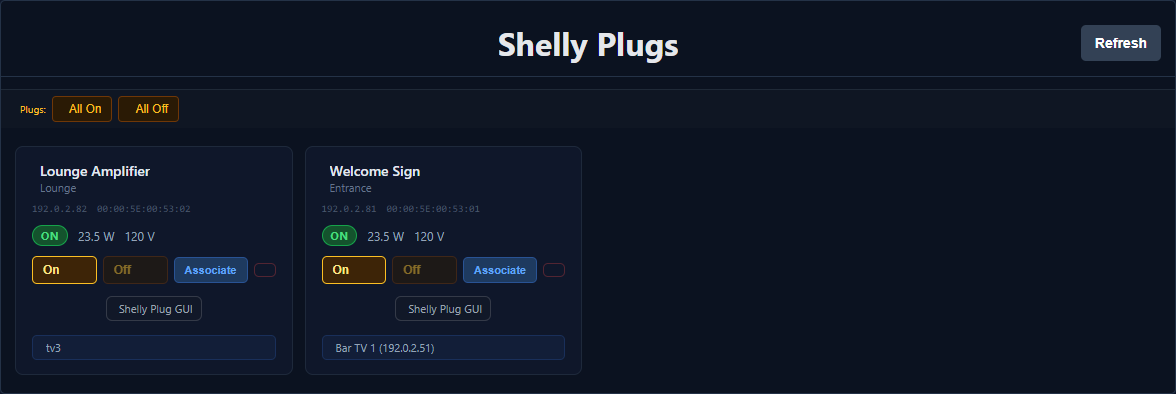
Use Matrix or Use as Source to assign inputs to screens, then confirm playback on the actual TVs. Guides, remote commands, pairing, and accessory controls depend on the configured devices and platform; not every button is available everywhere. No device commands were sent to create these examples.
Supported Shelly plugs and on-screen remotes are part of the DisplayHUB workflow, not a pile of unrelated control apps. Device control is optional and not guaranteed; support may be limited or unavailable. Verify each device’s capabilities and accessory load ratings. Device-control limitations and options.


Plan your first room
One local controller per location. Start with one encoder input and grow. Download the Android apps and follow the setup guide.