Connect your first HDMI input
Use an ARM64 Android 8+ device with USB host support and hardware H.264 encoding. Connect the USB HDMI capture dongle through a powered charging/data hub. Each new HDMI input gets its own encoder device.
 Start here
DisplayHUB Android Encoder / Your inputs
Each encoder handles one input. Connect the HDMI source you want to use with a compatible capture dongle and powered data hub. The Android Encoder can also use compatible HDHomeRun network tuners, video files, and direct video URLs without an HDMI dongle. Video travels over your private local network to the players you choose. Add inputs as needed without adding another controller.
ARM64 Android 8 and later. Download the current signed release and follow the installation prompts.
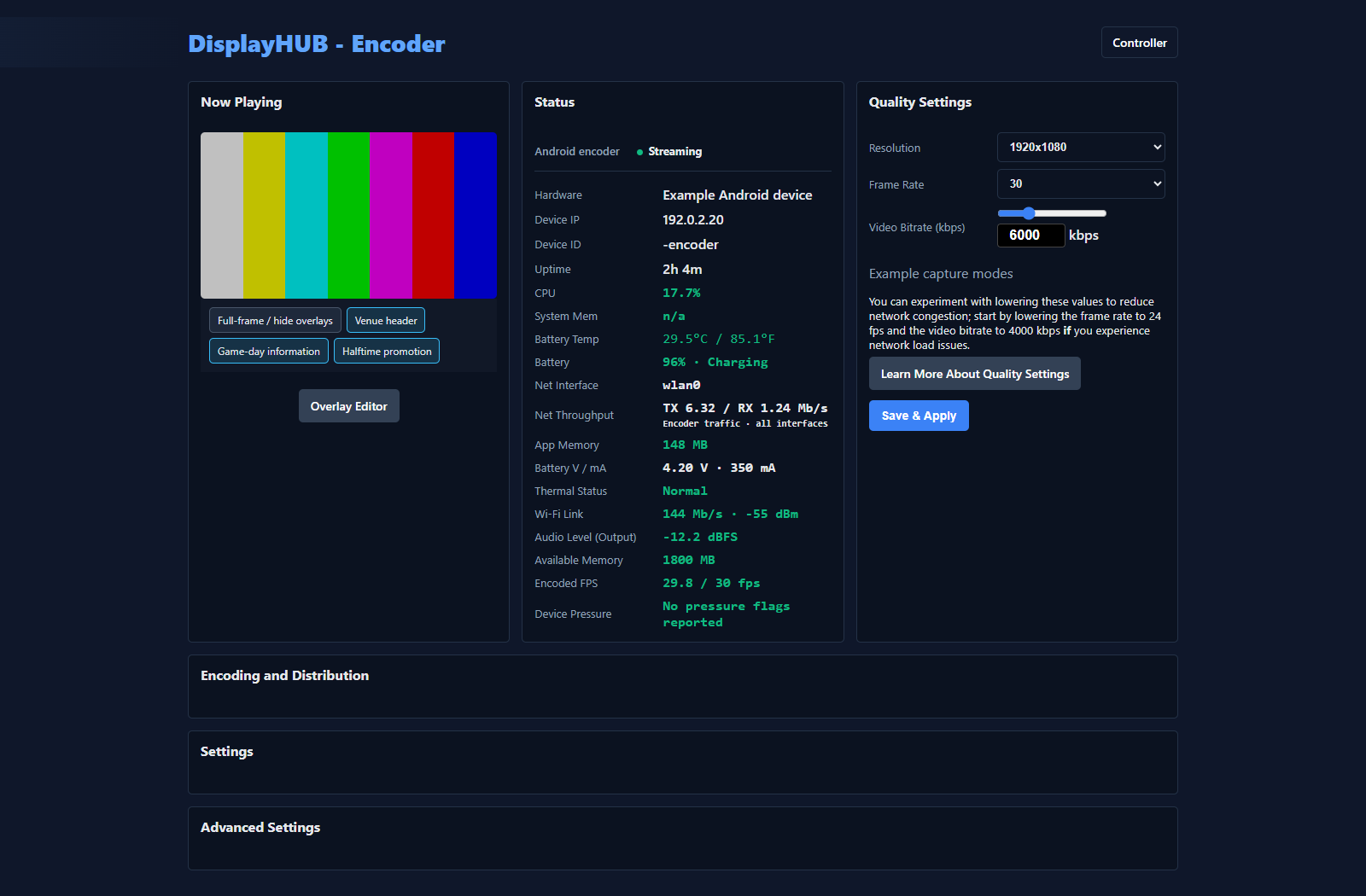
Use an ARM64 Android 8+ device with USB host support and hardware H.264 encoding. Connect the USB HDMI capture dongle through a powered charging/data hub. Each new HDMI input gets its own encoder device.
Open the Encoder app and approve its on-screen camera, audio, notification, and USB prompts. Allow it to run in the background.
Manage this input at http://ENCODER_IP:8080/. Start at 1080p30 (Full HD) and about 6,000 kbps when supported. Check video and sound, charging, and temperature, and reduce quality if needed.
Simple to start. Powerful when you need it.
Start with one input, then explore text, graphics, uploaded-video, and web-page overlays. Adjust ordering, opacity, rotation, and live apply when you are ready. Uploaded-video audio is optional.
Explore the advanced overlay guide →Capture modes depend on the Android device, USB capture hardware, and hardware codec. Protected HDMI may not be capturable. A supported USB IR blaster is optional for source control.
After a restart, Android may ask you to unlock the device, open the app, or approve USB access. Check your exact hardware under sustained load before putting it away.
Power, heat, and recovery checklist →DisplayHUB AIO
Run the Android Encoder without a separate Controller. AIO sends its configured input to compatible DisplayHUB players on the local network and includes the Overlay Editor for text, logos, slideshows, announcements and supported widgets. Create menus, promotions and information displays on the Encoder itself.
Activate a separate AIO subscription in the Encoder's AIO settings. Use WebRTC delivery or select HLS-only compatibility mode. Player installation, local-network reachability and platform requirements still apply; an AIO plan is not a regular Controller subscription.
Card required. Five days free, then US $9.99/month unless canceled. Copy the subscription ID from the confirmation page into Encoder AIO Settings.
More than a logo in the corner
Paid subscribers can build layered compositions with text, graphics, videos, web pages, and widgets. Resize, reorder, rotate, crop, and adjust effects. Use announcements, slideshows, and venue-special templates alongside clocks, weather, sports, stocks, and headlines.


Media Manager organizes uploads and creates layers or slideshows. The Specials widget can also read a generic CORS-enabled JSON feed; it is not a direct integration with a specific POS. HDMI, uploaded MP4 files, and supported direct video URLs can provide the main video stream; file and URL inputs do not supply primary audio. Uploaded overlay-video audio is opt-in. Some websites block embedding; check the actual program output and provider terms.
Plan your first room
One local controller per location. Start with one encoder input and grow. Download the Android apps and follow the setup guide.